SSH AgentPlugin Configuration: Private Keys, Targets, and Access Identities
The SSH AgentPlugin signs in to servers with remote accounts and private keys configured by an administrator. xAgent users select a target and enter an AgentPlugin access identity; they do not see the host address, remote account, or private key.
The current public release is 0.0.10. Put the private key in the SSH AgentPlugin keys/ directory before configuring a target. The management page accepts only a filename and does not upload private keys.
Before You Start
- Users of an existing target: obtain the assigned access identity from an administrator and go to Connect a User. Do not provide private keys in a Session.
- Administrators setting up a target: prepare the remote account, usable private key, reachable host, and user access identities. Install first, place the key in
keys/as described below, then register the plugin and add the target. - Distinguish the two identities: users enter an AgentPlugin access identity; the administrator-configured SSH account and private key authenticate to the remote host. They serve different purposes.
- Verify before writing: check connection state and the host fingerprint, confirm the target with read-only commands, and follow approvals for file changes or other mutations.
The installation and field examples below cover the public SSH AgentPlugin 0.0.10. Server and plugin releases are independent; upgrading Server does not imply a plugin configuration-format change.
Install
Rerun the installer on the xAgent host and select only the SSH AgentPlugin:
curl -fsSL https://downloads.xagent.xiagaogao.com/scripts/install.sh \
  | bash -s -- --yes --agent-plugins ssh
| Item | Linux | macOS |
|---|---|---|
| Configuration | /opt/xagent/agent-plugins/ssh/config.yml | ~/.local/share/xagent/agent-plugins/ssh/config.yml |
| Private-key directory | /opt/xagent/agent-plugins/ssh/keys/ | ~/.local/share/xagent/agent-plugins/ssh/keys/ |
| Audit log | /opt/xagent/agent-plugins/ssh/logs/ssh-audit.jsonl | ~/.local/share/xagent/agent-plugins/ssh/logs/ssh-audit.jsonl |
| Executable | /usr/local/bin/xagent-ssh-agent-plugin | ~/.local/bin/xagent-ssh-agent-plugin |
Linux creates and starts the xagent-ssh-agent-plugin systemd service. The macOS installer also prepares and starts a managed service.
Put the Private Key in keys/
The private key must be a regular file under the keys/ directory beside config.yml. Do not configure an arbitrary absolute path.
- The file mode must be
0400or0600. - The file must not be a symbolic link.
- The
keys/directory must not be writable by group or other; mode0700is recommended. private_keycontains only the filename, such asproduction_server.- Do not enter
keys/production_serveror an absolute path. - Do not use a
.pubpublic key as the private key, and never commit private keys to Git.
Linux:
sudo install -d -m 700 /opt/xagent/agent-plugins/ssh/keys
sudo install -m 600 /secure/path/id_ed25519 \
  /opt/xagent/agent-plugins/ssh/keys/production_server
sudo systemctl restart xagent-ssh-agent-plugin
macOS:
install -d -m 700 ~/.local/share/xagent/agent-plugins/ssh/keys
install -m 600 /secure/path/id_ed25519 \
  ~/.local/share/xagent/agent-plugins/ssh/keys/production_server
For manual startup troubleshooting, use:
cd ~/.local/share/xagent/agent-plugins/ssh
~/.local/bin/xagent-ssh-agent-plugin start --config ./config.yml
The AgentPlugin reads config.yml and keys/ only at startup. Restart it after adding or replacing a private key. The management page does not upload or hot-reload keys.
Register It in xAgent
As an administrator, open Agent Governance > AgentPlugin Connectors and select Add AgentPlugin.
| Field | Value |
|---|---|
| AgentPlugin address | A same-host installation normally uses http://127.0.0.1:19095; for separate hosts, use an address reachable by xAgent Server |
| API Key | The API Key printed by the installer, matching ssh_agent_plugin.api_key |
The AgentPlugin should show Online with protocol 4.4. SSH AgentPlugin 0.0.5 and later display a separate management action. If it is missing, upgrade the AgentPlugin and confirm that the API Key is not empty.
Only xAgent Server needs access to port 19095; do not expose it directly to the public internet.
Add an SSH Target
Use the management action on the SSH AgentPlugin row to open the target page.
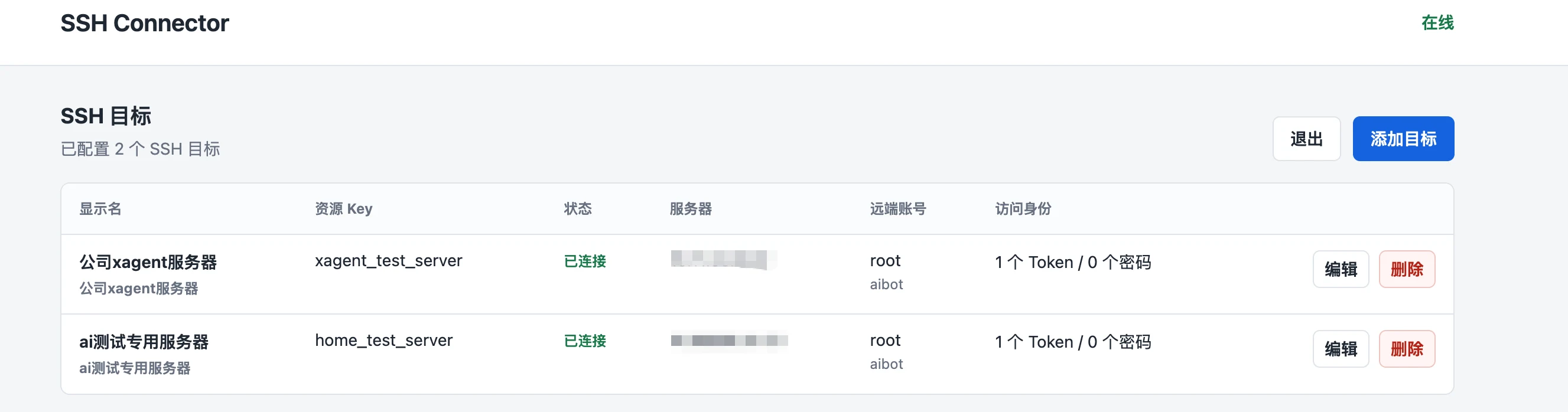
Select Add Target or Edit:
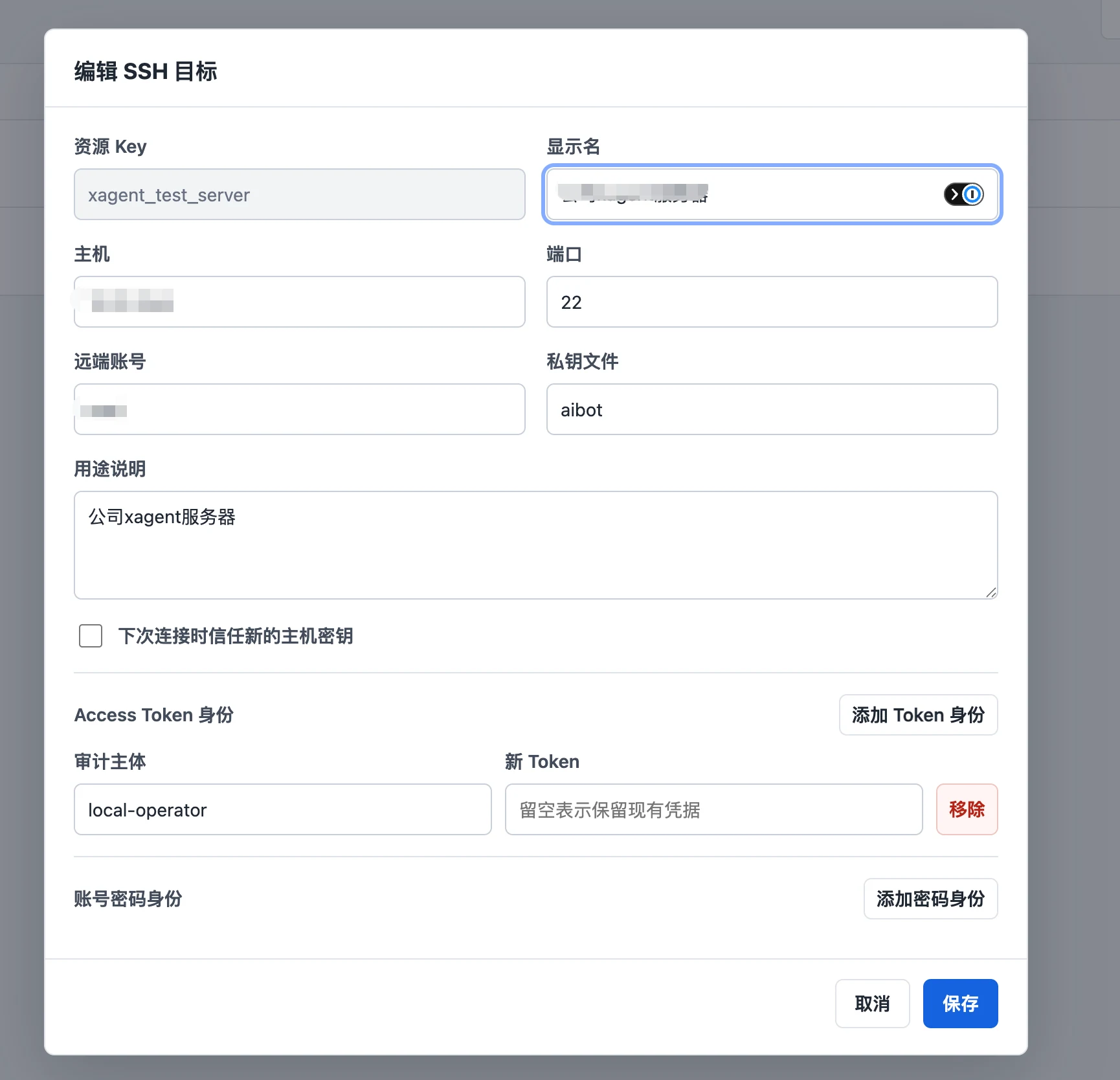
| Field | What to enter |
|---|---|
| Resource key | A stable, unique value such as production_server |
| Display name | The name users see under Plugin Connections |
| Host | The SSH address reachable by the AgentPlugin Server |
| Port | The actual service port, commonly 22 |
| Remote account | The account the AgentPlugin signs in as with the private key |
| Private-key file | A filename under keys/, such as production_server; paths are not allowed |
| Purpose | A short description of the server; do not include tokens or other credentials |
| Access Token identity | The principal + token entered by xAgent users and recorded for audit attribution |
| Username/password identity | An AgentPlugin-local username and password, not the remote SSH password |
The management page stores a SHA-256 digest for a new token and a bcrypt digest for a new password. Leaving an existing credential empty while editing preserves its current value.
Saving a target reprobes it immediately. Changes to connection fields close the old SSH connection, user bindings, and related PTY Sessions.
Connect a User
After the administrator adds a target, the user opens Plugin Connections, selects the SSH AgentPlugin and target, and enters the assigned principal and access token or AgentPlugin-local username and password.
These credentials are used only for AgentPlugin authentication and auditing. Remote SSH authentication still uses the administrator-defined remote account and the private key under keys/.
Start with read-only commands:
List my available SSH targets, then run uname -a and pwd on the test server. Do not modify files.
The SSH AgentPlugin supports bounded commands, interactive PTYs, and SFTP upload and download. It does not currently support port forwarding, jump hosts, agent forwarding, keyboard-interactive authentication, or arbitrary TCP proxying.
Host Fingerprints
On the first connection, the AgentPlugin records the remote host key's SHA256: fingerprint. If the fingerprint changes later, the target enters host_key_changed; the AgentPlugin does not trust the new key automatically.
Select Trust the new host key on the next connection only after confirming through another channel that the server intentionally changed its SSH host key. Do not clear the old fingerprint if the change cannot be verified.
Edit config.yml Directly
The management page maintains targets and access identities. Edit config.yml for the listen address, API Key, state directory, timeouts, file limits, and audit mode:
ssh_agent_plugin:
  addr: 127.0.0.1:19095
  api_key: replace-with-a-long-random-system-api-key
  state_dir: /opt/xagent/agent-plugins/ssh/state
  connect_timeout_seconds: 10
  exec_timeout_seconds: 30
  max_output_bytes: 1048576
  shell_idle_timeout_seconds: 900
  shell_buffer_bytes: 1048576
  max_file_bytes: 67108864
  file_ttl_seconds: 900
  audit_file: ./logs/ssh-audit.jsonl
  audit_shell_input: hash_only
  targets:
    - resource_key: production_server
      label: Production Server
      description: Governed operations target
      host: 10.0.0.20
      port: 22
      remote_username: deploy
      private_key: production_server
      access:
        tokens:
          - principal: operator
            token_hash: sha256:replace-with-64-hex-characters
Restart after editing config.yml directly or replacing a file under keys/:
sudo systemctl restart xagent-ssh-agent-plugin
sudo systemctl status xagent-ssh-agent-plugin
audit_shell_input supports full, hash_only, and none. Shell input may contain sensitive values; production deployments normally use hash_only or none.
Common Problems
| State or symptom | Fix |
|---|---|
invalid_config | Check that the key is under keys/, only the filename is configured, the key is a regular file, and its mode is 0400 or 0600 |
auth_failed | Check the remote account, confirm the public key is in authorized_keys, and confirm the SSH Server permits public-key authentication |
unreachable | From the AgentPlugin Server, check the address, port, firewall, routing, and SSH service |
host_key_changed | Verify the host-key change first, then trust the new key only after confirmation |
| User cannot connect | Confirm they entered the AgentPlugin principal/token or local username/password, not the remote SSH password |
| Replacement key has no effect | Restart the SSH AgentPlugin; keys/ does not hot-reload |
| Management action is missing | Upgrade to 0.0.5 or later and confirm the AgentPlugin started from a configuration file with a non-empty API Key |
Linux logs:
journalctl -u xagent-ssh-agent-plugin -f
sudo tail -f /opt/xagent/agent-plugins/ssh/logs/ssh-audit.jsonl