How xAgent Backup and Disaster Recovery Work: Incremental Snapshots and recovery.yml
A self-hosted backup needs to answer more than whether bytes reached remote storage. It needs to show that the data can be restored, how much downtime restoration requires, and whether a failed cutover can return to the previous state.
xAgent 0.0.8.beta turns those questions into a verifiable procedure: create encrypted incremental snapshots while the service is running, download and verify restore data online, switch directories after shutdown, then confirm or roll back.
Two Meanings of Full Backup
xAgent backup is logically full and physically incremental.
- Every completed snapshot can reconstruct a complete data directory. Recovery does not require a base archive followed by a carefully ordered chain of incremental archives.
- The repository stores content-addressed objects. Objects whose content has not changed are reused, so later jobs upload only new or changed content.
A snapshot becomes restorable only after all required objects are uploaded and its completion marker is written. Interrupted or incomplete jobs are never presented as complete recovery points.

Step 1: Configure the Backup Repository
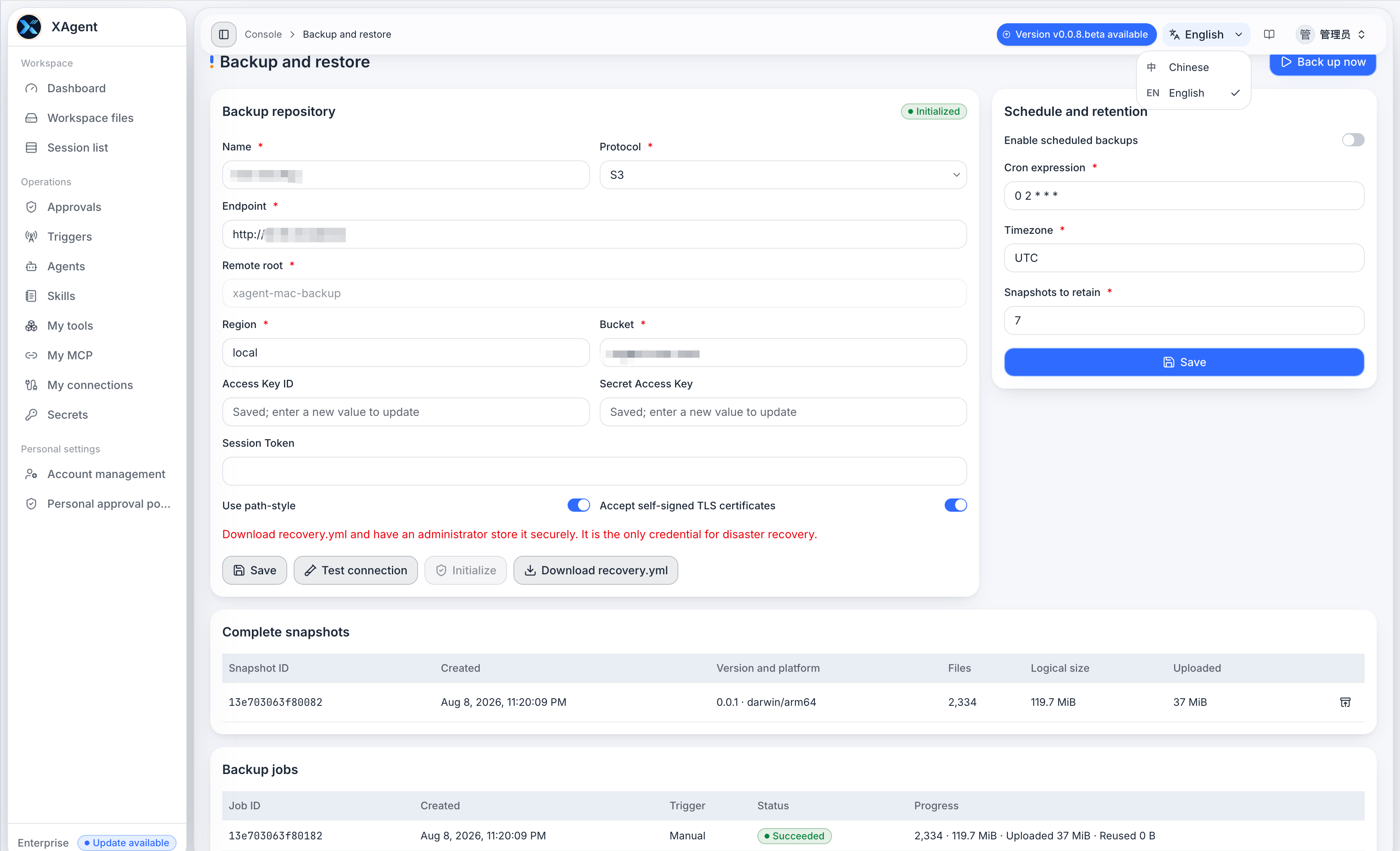
Open Backup Management as an administrator. Choose S3, an S3-compatible object store, or WebDAV, then provide a repository name, endpoint, and remote root. S3 also requires region, bucket, and credential settings; WebDAV uses a username and password.
Use this order:
- Save the configuration.
- Test connectivity, authentication, and read/write access.
- Initialize the repository.
- Download
recovery.ymland keep at least one offline copy. - Run one manual backup and verify that a complete snapshot appears.
- Enable scheduling with a five-field Cron expression, an IANA time zone, and a retention count.
The default policy is disabled and, when enabled without customization, represents 02:00 UTC (0 2 * * *) with seven retained snapshots. Select values from your recovery-point objective, change rate, remote capacity, and acceptable data-loss window rather than accepting the defaults without review.
recovery.yml is an independent disaster-recovery entry point. It contains the repository location, access credentials, decryption material, and target paths without depending on the original xAgent database or KMS. Treat it as a high-sensitivity file: do not commit it to Git, place it in xAgent Public Files, or keep the only copy on the same host you need to recover.
Step 2: Know What Is Backed Up
Backup collection uses an allowlist focused on formal state required to restore service, including:
config.yml, the platform secret, and the license;- the SQLite database and formal file objects;
- user Workspaces and data, Memory, Skills, and model configuration;
- Tool packages, queue state, file-processing component configuration, and Connector-related state.
Temporary directories, caches, logs, PID files, sockets, locks, SQLite WAL/SHM files, downloaded runtime assets, and regenerable summary caches are excluded. SQLite is copied through its online backup interface instead of copying a database file that may be changing.
One boundary deserves explicit attention: third-party content mounted into Public Files through S3 or WebDAV is not copied into xAgent backup. xAgent preserves its integration configuration and internal state; protect the remote files with object-store versioning, cross-region replication, snapshots, or another provider-side policy.
Step 3: Create and Inspect Snapshots
Backup Management can start a job immediately and shows both job history and completed snapshots. Snapshot metadata includes creation time, xAgent version and platform, file count, logical size, and uploaded size.
The first job usually uploads the most data. Later snapshots remain independently restorable, while their uploaded size primarily reflects changes since objects already in the repository are reused. Retention removes expired snapshot references; an object becomes eligible for later cleanup only when no remaining snapshot references it.
In a disaster environment, list complete snapshots without the original database:
xagent-server backup snapshots --recovery-config recovery.yml
Step 4: Prepare Restore Data Online
Prepare the newest complete snapshot:
xagent-server backup restore --recovery-config recovery.yml
Prepare a specific snapshot:
xagent-server backup restore \
  --recovery-config recovery.yml \
  --snapshot <snapshot_id>
This phase downloads objects, verifies integrity, and reconstructs a data directory, but does not replace the active data directory. It can run while xAgent is still serving users, keeping the downtime window focused on the final cutover.
If download, decryption, or verification fails, the active service directory remains unchanged. Fix the repository, credentials, network, or capacity issue and prepare again instead of bypassing verification.
Step 5: Stop xAgent and Cut Over
After online preparation is complete, stop xAgent and run:
xagent-server backup restore \
  --recovery-config recovery.yml \
  --continue
--continue uses the prepared local restore journal and does not download the snapshot again. A running xAgent holds a file lock, so live cutover is rejected. This prevents restore from racing with writes to the active data directory.
The cutover retains the previous directory for rollback and writes progress to a durable journal. If the command or host stops midway, normal startup is blocked by a restore guard that instructs the operator to continue or roll back rather than run from a half-switched directory.
Step 6: Start, Validate, Confirm, or Roll Back
Start xAgent after the cutover and verify at least the following:
- an administrator can sign in, and users and permissions match the selected recovery point;
- recent sessions, Workspace files, Memory, Skills, Tools, and Connector state are readable;
- model configuration works and a critical session can complete a read-only check;
- Backup Management shows the expected repository and snapshots;
- logs contain no database, file-integrity, or restore-guard errors.
After successful validation, remove staging and rollback data:
xagent-server backup restore \
  --recovery-config recovery.yml \
  --confirm
If validation fails, stop xAgent first, then roll back:
xagent-server backup restore \
  --recovery-config recovery.yml \
  --rollback
Restart and validate the original data directory after rollback. --confirm removes the information needed for rollback, so a process merely starting is not enough reason to confirm.
--continue, --confirm, and --rollback are mutually exclusive and cannot be combined with --snapshot.
What to Record During a Recovery Drill
A reliable backup policy includes regular restore drills. Record at least:
| Item | Evidence to retain |
|---|---|
| Recovery point | Snapshot ID, creation time, and xAgent version |
| Online preparation | Download duration, verification result, and staging space |
| Downtime | Time from service stop to restored availability |
| Validation | Sign-in, permissions, database, files, sessions, and Connector checks |
| Decision | Time and operator for --confirm or --rollback |
| Exceptions | Network, credential, capacity, version, or integrity issues and resolution |
Run the first drill on an isolated host and separate paths. The first restoration attempt should not be performed against the only production instance.
Frequently Asked Questions
Is data restored when online preparation finishes?
No. Online preparation only downloads, verifies, and reconstructs data. Stop xAgent and run --continue to switch the formal data directory.
Can I select a snapshot if the original database is damaged?
Yes. With an accessible repository, an offline copy of recovery.yml, and a compatible xAgent Server, you can list complete snapshots and prepare recovery without the original database.
Why are S3 files from Public Files absent from the backup?
Those files belong to the external storage data plane and are not copied into xAgent backup. Configure versioning, replication, snapshots, or an independent backup policy on that S3 or WebDAV service.
See the 0.0.8.beta release notes for the wider release and Start Installation for installation and upgrade steps.